Mobile Hotspot Network Security Key: Connect Securely and Manage Data
The mobile hotspot network security key is the password that allows a laptop, tablet, or other device to join a phone’s hotspot. Open the hotspot settings on the phone, confirm the hotspot name (SSID), copy or change the password, and select the matching network on the client device. A successful connection requires both Wi-Fi access and an active cellular data connection.
For reliable security, use WPA2-Personal or WPA3-Personal when available, avoid an open hotspot, and verify that the connected device can load a webpage. Once connected, hotspot traffic is charged against the phone’s cellular data allowance in most cases. The amount depends mainly on browsing, calls, music, video quality, updates, and the number of connected devices.
Find and change your mobile hotspot network security key—and verify the connection
A hotspot has three separate settings that are easy to confuse:
- SSID: The Wi-Fi network name shown in the available-network list.
- Password or security key: The credential required to join the SSID.
- Encryption mode: The security method used to protect the Wi-Fi connection between the phone and each connected device.
The SSID identifies the hotspot but does not protect it. A password protects access, while WPA2 or WPA3 encrypts the local wireless connection. Hiding the SSID is not a replacement for a strong password and encryption.
On Android: Open Settings, then look for Network & internet, Connections, or Hotspot & tethering. Select Wi-Fi hotspot or Mobile Hotspot. Samsung Galaxy phones commonly use Settings > Connections > Mobile Hotspot and Tethering > Mobile Hotspot. The exact labels vary by manufacturer and Android version.
On an iPhone: Open Settings > Personal Hotspot, or select Cellular > Personal Hotspot on some versions. The Wi-Fi password appears in the Personal Hotspot settings. The iPhone name normally serves as the hotspot SSID, and the password can be replaced with a new one.
- Turn on the hotspot or Personal Hotspot feature.
- Record the displayed SSID exactly, including spaces, capitalization, and punctuation.
- Display the current password, or enter a new unique password. A password of at least 12 characters is preferable when the device allows it.
- Choose WPA3-Personal if every client supports it. Choose WPA2-Personal when older laptops, tablets, game consoles, or smart devices cannot join a WPA3 network.
- Save the setting and leave the hotspot screen open while connecting the first client.
- On the laptop or tablet, open Wi-Fi settings, select the matching SSID, and enter the password or security key.
Changing the key usually disconnects every existing client. Each device must be connected again with the new password. This also provides a quick way to remove devices that should no longer have access. If an unfamiliar device appears in the hotspot’s connected-device list, disconnect it, change the key, and reconnect only the intended devices.
Some phones show a choice between WPA2, WPA3, and a compatibility mode. A compatibility mode can help older clients connect, but it may use a less modern security option than WPA3. An open or “none” security setting should be avoided, particularly in public places. WPA encryption protects the Wi-Fi segment between the phone and client; it does not make every website or online service safe. HTTPS and the security controls of the destination service still matter.
Client isolation, when offered, is a separate control. It prevents connected hotspot clients from communicating directly with one another. For example, isolation can stop one connected laptop from browsing shared folders on another connected laptop. It does not hide a client from the phone, encrypt traffic beyond the Wi-Fi link, or prevent the phone from forwarding traffic to the cellular carrier. Client isolation is useful on shared hotspots, but it does not replace WPA2 or WPA3.
Use these checks to confirm that the connection is complete:
- The client device shows the intended SSID and a connected Wi-Fi status.
- The phone’s hotspot screen lists the client, when the phone provides a connected-device list.
- The client loads a normal HTTPS webpage rather than only showing a Wi-Fi symbol.
- The phone shows cellular signal and an active data connection.
- A small test download or webpage load appears in the phone’s cellular-data meter or the carrier’s usage dashboard.
A device that is connected to Wi-Fi but cannot open a webpage has joined the hotspot locally but has not reached the internet. Check that cellular data is enabled, the phone has usable signal, the carrier plan permits tethering, and the data allowance has not been exhausted. If only one client fails, remove the saved hotspot network from that client and connect again with the current key.
How hotspot traffic uses the cellular data network
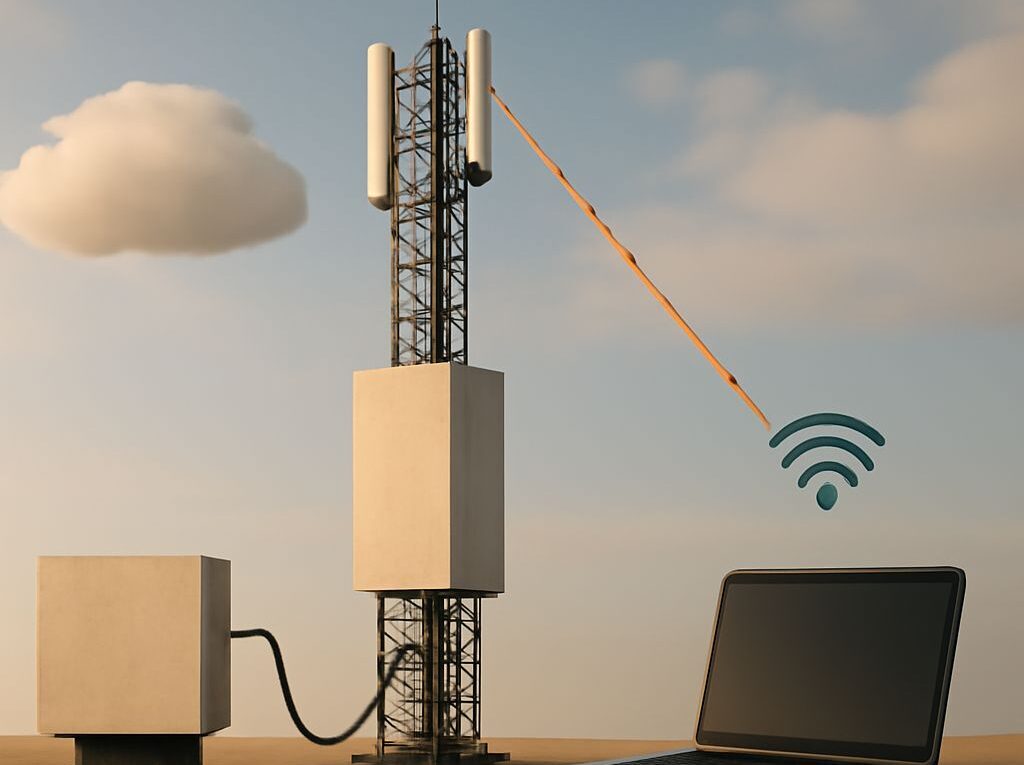
A normal phone hotspot creates a short Wi-Fi link, then routes the connected device’s traffic through the phone’s mobile modem. The path is generally:
- The laptop or tablet sends a request over Wi-Fi to the phone.
- The phone acts as a local router and passes the request to its cellular modem.
- The modem communicates with a nearby carrier tower over the cellular radio network.
- The carrier’s core network sends the request to the internet service, then returns the response along the same route.
In this arrangement, the laptop is not using a separate fixed broadband connection. Its downloads, uploads, video streams, cloud synchronizations, and software updates are using the phone’s cellular data allowance. The phone’s own apps may also be using data at the same time, so the hotspot is only one part of the total usage.
Hotspot traffic is measured by the amount of data transferred, not by the number of minutes the hotspot remains switched on. A connected device that is idle may use very little. A laptop running cloud backup, a video meeting, and an operating-system update can consume several gigabytes in a short session.
Hotspot use can be heavier than the same activity on a phone for several reasons:
- A desktop website may load more images, advertising, scripts, and high-resolution media than a mobile version.
- Windows, macOS, ChromeOS, and Linux can download background updates or synchronize large files.
- Streaming services may select a higher resolution for a larger screen.
- Several clients may use the connection simultaneously.
- Cloud storage, photo backup, game launchers, and email attachments can transfer data without an obvious foreground window.
Network overhead adds a small amount beyond the visible file or stream size. Carrier meters, operating-system counters, and applications can therefore show slightly different totals. Billing is also affected by the carrier’s measurement period and rounding rules. A phone’s data counter is useful for estimating activity, but the carrier account is normally the most relevant source for plan usage.
USB tethering and Bluetooth tethering use different local links, but they can still route through the phone’s cellular connection. Changing Wi-Fi to USB does not normally reduce the data consumed by a video, update, or download. It may improve stability or battery performance, especially during a long session.
When several devices are connected, their traffic is additive. For example, a tablet using 600 MB for a video, a laptop downloading a 400 MB update, and a phone using 100 MB of background traffic can consume about 1.1 GB before accounting for overhead. A hotspot with a generous signal can transfer data quickly enough that the allowance is reached before the user notices.
What is cell data? Trace the path from tower to connected device
What is cell data? It is digital information sent through a mobile carrier’s cellular radio network rather than through a local Wi-Fi connection. Web pages, app content, maps, music, video, file transfers, and many internet-based calls can all use cell data. The phone communicates with a nearby tower, and the carrier connects that session to the wider internet.
Cell data and Wi-Fi are different access paths:
- Cellular data: Uses a carrier subscription, cellular signal, and the phone’s mobile modem.
- Wi-Fi: Uses a local wireless network connected to a broadband, office, hotel, or other internet service.
- Mobile hotspot: Usually uses Wi-Fi between the client and phone, then uses the phone’s cellular data path from the phone to the internet.
That last combination explains why a laptop can show a Wi-Fi icon while the carrier account records cellular usage. The Wi-Fi icon describes the local connection to the phone; it does not indicate that the phone is receiving internet service from a home router.
Most phones show a cellular signal indicator, but signal strength is not a direct data meter. Strong signal can support faster transfers, while weak or congested service can make a transfer take longer. A slow connection may reduce the amount downloaded during a short session, but it does not make a large video or update inherently smaller. Streaming services may also change quality in response to network conditions.
Some activities use cellular data even when a hotspot is not active. Examples include automatic photo backup, app refresh, navigation-map downloads, email synchronization, social-media feeds, and operating-system services. These phone activities should be separated from hotspot traffic when planning an allowance.
To measure the difference, reset the phone’s usage counter at the start of the carrier billing cycle or at the start of a hotspot test. Then record the starting total, the hotspot session length, the connected devices, and the activities performed. Afterward, compare:
- The phone’s total cellular-data counter.
- Any hotspot or tethering category shown by the phone.
- The data counter on each connected laptop, tablet, or console.
- The carrier’s account or mobile app, which may report billable usage differently.
Android commonly provides mobile-data usage under Settings > Network & internet > SIMs or Settings > Connections > Data usage. iPhone provides a cellular-usage list under Settings > Cellular. Android can usually set a data warning or limit, while a carrier app can provide account-level alerts. On Windows, marking a hotspot connection as metered can reduce automatic updates and synchronization, although individual applications may still use data.
What can you do with 1 GB of data? Budget video, updates, and background use
One gigabyte is approximately 1,000 MB under many carrier billing systems or 1,024 MB in some device calculations. The practical answer to What can you do with 1 GB of data? depends on compression, resolution, app settings, page size, and background activity. The following are planning ranges rather than guarantees.
- Light messaging and email: A few megabytes to roughly 20 MB per hour, excluding large photo or video attachments.
- Web browsing: About 50–200 MB per hour. Around five to 20 hours is possible, but image-heavy sites, advertising, live pages, and downloads can reduce that range sharply.
- Internet voice calls: Approximately 0.5–2 MB per minute, or about eight to 30 hours per gigabyte. Cellular voice calls that use the carrier’s ordinary voice service may not use the same data allowance; app-based calls do.
- Music streaming: Roughly 40–150 MB per hour, depending on low, normal, high, or lossless quality. One gigabyte can support about seven to 25 hours of compressed music.
- Standard-definition video: About 0.5–1 GB per hour. One gigabyte may cover approximately one to two hours.
- High-definition video: About 1.5–3 GB per hour. One gigabyte may cover roughly 20–40 minutes.
- Video calls: Commonly 300 MB to 2 GB per hour, depending on the number of participants, camera resolution, screen sharing, and motion.
- Software and game updates: From 50 MB for a small patch to several gigabytes for an operating-system or game update. One large update can consume the entire allowance.
These figures describe the transferred data, not necessarily the time an application remains open. A paused video may continue loading ahead, and a browser left open may refresh pages or advertisements. Conversely, a compressed text page can use far less than a media-rich page.
Video is normally the largest variable. The main elements of video streaming data usage are resolution, frame rate, codec, content complexity, automatic quality selection, and whether the service preloads future scenes. A short high-definition clip can use more data than an hour of text browsing. A large laptop display can also encourage a service to choose a higher resolution than it would on a phone.
A practical 1 GB budget could look like one of these examples:
- Four hours of ordinary browsing at 100 MB per hour, with 600 MB left for email and background activity.
- Six hours of normal-quality music at 100 MB per hour, with 400 MB left for browsing.
- One hour of standard-definition video, leaving little room for updates or other clients.
- Twenty-five minutes of high-definition video at about 2.4 GB per hour, using roughly 1 GB by itself.
- Several short video calls, provided that cloud backup, updates, and other connected devices are paused.
Multiple connected devices change the calculation immediately. If two laptops each browse at 100 MB per hour, the combined estimate is about 200 MB per hour. If one laptop streams HD video at 2 GB per hour while a tablet performs a 500 MB update, the first hour can exceed 2.5 GB. A hotspot’s data budget should therefore be based on the combined activity of every client, not on the phone’s screen alone.
Before starting a limited-data session, use these controls:
- Check the carrier’s remaining allowance and note the phone’s current cellular-data total.
- Open the hotspot client list and disconnect devices that are not required.
- Set streaming services to data saver, standard definition, or a fixed lower resolution.
- Disable autoplay and avoid downloading offline video or music over the hotspot.
- Pause cloud photo backup, drive synchronization, game launchers, and nonessential downloads.
- Mark the connection as metered on a Windows or other supported client device.
- Schedule operating-system and application updates for a trusted unlimited Wi-Fi network.
- Check the phone and carrier meter during the session, especially after starting a video, update, or call.
For a controlled test, connect one client, record the starting meter, perform one known activity for 30 or 60 minutes, and record the ending meter. Repeat with video at each intended quality level. This produces a local estimate that reflects the phone, carrier, streaming service, and client device more accurately than a generic range.
Android users can review per-app usage and set a warning or limit under the device’s mobile-data settings. iPhone users can review app totals under Settings > Cellular and turn off cellular access for apps that should wait for Wi-Fi. Low Data Mode, data-saver settings, and metered-connection controls can reduce background transfers, but they do not guarantee that every application will stop using data. The carrier meter should be checked before the hotspot is left running or another device is added.