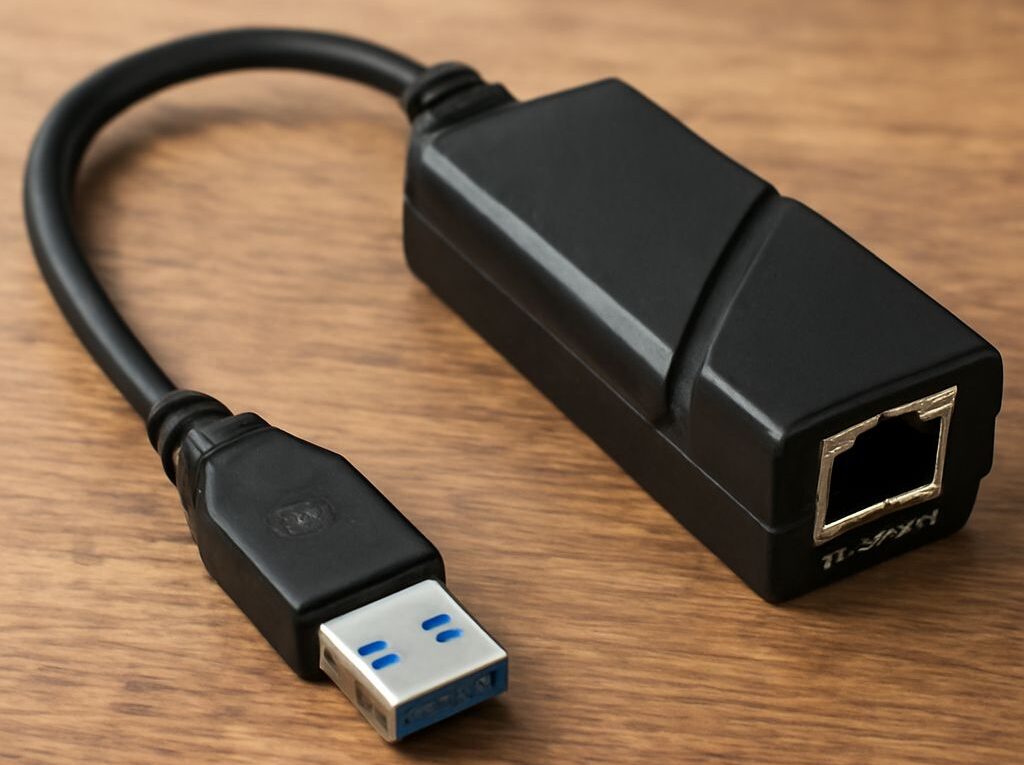
Internet Cable Connector: Connect USB to Gigabit Ethernet
An internet cable connector is usually the modular Ethernet connector commonly called an RJ45. To connect a USB-equipped computer or other device to Gigabit Ethernet, the complete path needs four compatible elements: a USB port, a USB to network adapter, an Ethernet interface, and a suitable cable with matching connectors. The slowest or incompatible element limits the result.
For a 1 Gbps link, use a USB 3.x port and gigabit-capable adapter, connect it with a four-pair Cat5e-or-better cable, and verify that the operating system reports 1.0 Gbps or 1000 Mbps. A throughput test then confirms performance beyond the negotiated link rate.
Internet Cable Connector Types: RJ45/8P8C Plugs, Jacks, and Patch Panels
The connector fitted to most copper Ethernet cables is an eight-position, eight-contact modular plug, technically called an 8P8C. It is commonly called an RJ45, although RJ45 is an older registered-jack designation that does not precisely describe every modern Ethernet plug. In normal equipment descriptions, “RJ45” and “8P8C” usually refer to the same familiar Ethernet cable end.
- Plug: The male connector crimped onto a patch cable. Its eight metal contacts connect to the cable’s eight conductors.
- Jack: The female socket on a computer, switch, router, wall outlet, or keystone module. The Ethernet port on a USB adapter is also a jack.
- Patch panel: A rack-mounted panel that terminates building cable runs in multiple jacks. Short patch cables connect those jacks to a switch or other network equipment.
A standard gigabit channel can include an adapter jack, a patch cable, a wall jack or patch panel, permanent in-wall cable, and another patch cable before reaching a switch. Every plug, jack, punchdown termination, and cable section must support the intended category. A damaged contact, poorly crimped plug, or split pair can cause a gigabit link to negotiate at 100 Mbps or lose connectivity altogether.
RJ45-style connectors are keyed, so an Ethernet plug fits an Ethernet jack in only one orientation. The small locking tab should click into place and remain intact. A plug that feels loose, has a broken latch, or shows bent contacts should be replaced rather than repeatedly reinserted.
For 1000BASE-T Gigabit Ethernet, all four twisted pairs are required. Older two-pair telephone-style wiring may support some 10 or 100 Mbps connections but cannot provide a dependable gigabit link. A normal Ethernet patch cable uses the same type of plug at both ends. Modern network equipment generally handles transmit and receive pair selection automatically, so a crossover cable is rarely needed.
Choose a USB to network adapter: USB generation, drivers, and Ethernet speed
The adapter must support both the host device’s USB connection and the required Ethernet speed. For gigabit operation, the practical choice is a USB 3.x adapter with a 10/100/1000 Mbps Ethernet interface. USB 3.0, USB 3.1 Gen 1, and USB 3.2 Gen 1 describe the same 5 Gbps class in different naming schemes. A USB 3.2 Gen 2 adapter has a 10 Gbps USB connection and also provides more than enough bus capacity for one gigabit Ethernet port.
USB 2.0 has a 480 Mbps signaling rate and lower usable bandwidth after protocol overhead. Some USB 2.0 Ethernet adapters may display a 1 Gbps Ethernet link, but the USB bus normally prevents them from delivering full gigabit throughput. A USB 3.x host port is therefore required when the objective is to move data near 1 Gbps.
Connector shape does not identify USB speed. USB-C can carry USB 2.0, USB 3.x, or faster standards, depending on the device and port. USB-A ports also vary by generation. The computer’s specification, port markings, or operating-system hardware information should be checked instead of relying only on a blue plastic insert or the connector’s shape.
Check these adapter specifications before purchase:
- Ethernet interface: Look for 10/100/1000 Mbps, Gigabit Ethernet, or 1000BASE-T. An adapter limited to 10/100 Mbps cannot reach gigabit, regardless of its USB generation.
- USB interface: Select USB 3.x for a gigabit adapter. A USB-C adapter should state its USB data speed, not just its connector type.
- Operating-system support: Confirm support for the specific Windows, macOS, Linux, ChromeOS, or other operating-system version. Some adapters use built-in drivers, while others require a vendor driver before the Ethernet port works.
- Direct connection: Connect the adapter to a USB 3.x port on the computer during testing. A low-speed hub, monitor dock, or overloaded shared hub can become a separate bottleneck.
Driver support affects more than initial detection. A missing or incorrect driver can leave the adapter unrecognized, restrict advanced settings, cause repeated disconnections, or prevent the operating system from reporting accurate link information. After installation, the adapter should appear as a wired Ethernet interface rather than an unknown USB device. Vendor drivers may be useful when the operating system’s built-in driver is unstable, but the operating system and adapter manufacturer should support the selected combination.
Adapters with 2.5GbE or faster Ethernet ports can also work on a gigabit network, but they do not automatically make the rest of the connection faster. The switch or router port, USB bus, cable path, and remote device must all support the higher rate. For a standard 1 Gbps network, a USB 3.x gigabit adapter is usually the simplest match.
Select a 1-gigabit Ethernet cable for a 1 Gbps link
A compliant Cat5e cable is sufficient for a 1 Gbps Ethernet connection. Cat6 and Cat6A cables also support gigabit and may provide additional margin for newer or more demanding installations. The cable rating applies to the cable and its terminations as a channel, so a Cat6 cable connected through a damaged or poorly terminated jack does not create a Cat6-quality link.
When selecting a 1 Gb Ethernet cable, look for:
- Category: Cat5e, Cat6, or Cat6A. Cat5e is the minimum practical category for a standard gigabit link.
- Four twisted pairs: The cable should contain eight conductors arranged as four balanced pairs. Gigabit Ethernet uses all four pairs.
- Correct plugs: The cable should have compatible 8P8C/RJ45 plugs for the adapter and switch, router, wall jack, or patch panel.
- Appropriate length: A copper Ethernet channel is normally designed for up to 100 meters, including patch cords and permanent cable. Shorter runs are preferable when they meet the installation need.
There is no special “internet” cable required. The cable carries Ethernet frames between the adapter and the network device; Internet access then depends on the connected router, service, and wider network. Shielded cable is not automatically faster than unshielded cable. Shielding is useful only when the equipment, jacks, patch panel, and grounding arrangement are designed to use it correctly.
For a short connection, a factory-made Cat5e or Cat6 patch cable is generally more reliable than a hand-crimped cable. If a permanent run is installed, solid-conductor horizontal cable normally terminates at jacks or a patch panel, while stranded patch cable connects the jacks to equipment. The cable jacket should show its category marking, but that marking does not compensate for a defective termination.
Connect and verify gigabit operation
- Confirm the hardware path. Identify a USB 3.x port on the computer, a gigabit-capable USB Ethernet adapter, and a gigabit Ethernet port on the switch, router, or other network device.
- Install or confirm the driver. Connect the adapter directly to the computer, allow the operating system to detect it, and install the supported driver if it is not recognized. Avoid beginning with a hub or dock while troubleshooting.
- Connect the cable. Insert one plug fully into the adapter’s Ethernet jack and the other into a gigabit port on the switch or router. Both retaining tabs should click, and the port indicators should show a link.
- Allow autonegotiation. Gigabit copper Ethernet normally uses autonegotiation to exchange supported speeds and duplex modes. The adapter and network port should be set to automatic rather than having one side forced to a different speed or duplex setting.
- Read the negotiated speed. In Windows, open the wired Ethernet connection’s status or hardware properties and look for “Speed.” macOS exposes Ethernet details through Network settings or System Information. On Linux, the command “ethtool” followed by the Ethernet interface name reports the negotiated speed and duplex. The desired result is 1000 Mbps or 1.0 Gbps, usually with full duplex.
- Test actual transfer performance. For the clearest result, run a tool such as iperf3 between the tested device and another computer connected by wired gigabit Ethernet. A local file transfer can also help, provided the storage devices are fast enough.
Link speed and throughput are different measurements. A 1000 Mbps status means the physical Ethernet link negotiated at 1 Gbps; it does not promise 1000 Mbps of application data. Ethernet, IP, TCP, USB, operating-system, and storage overhead reduce usable throughput. A healthy local gigabit path often produces roughly 900–950 Mbps in a suitable test, but results vary with the adapter chipset, processor load, USB bus, test software, and endpoint hardware.
An Internet speed test measures the entire route to the selected server, including the broadband service, router, congestion, and server capacity. It may be lower than the wired link even when the adapter and cable are operating correctly. If the operating system reports 100 Mbps instead of 1.0 Gbps, inspect the cable and all intermediate jacks first, then verify that both network ports are gigabit-capable, the adapter driver is current, the USB connection is USB 3.x, and autonegotiation is enabled on both ends.