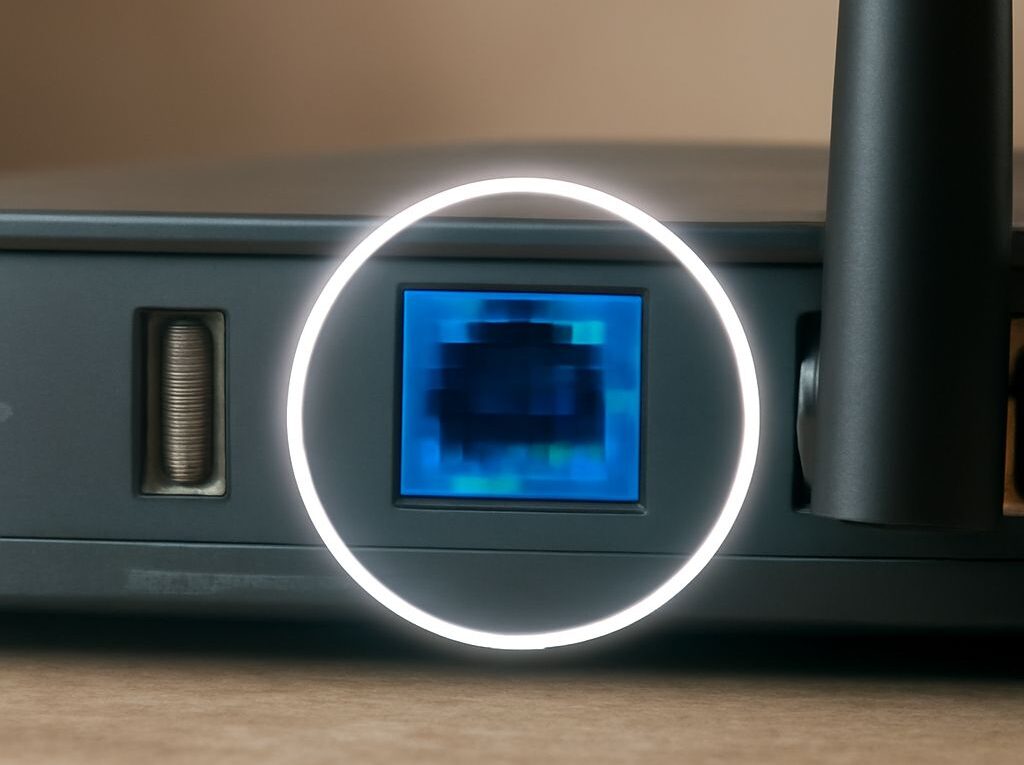
LAN USB Adapter: Connect It to the Right Router Port and Cable
A LAN USB adapter adds an Ethernet network connection to a computer, tablet, or other endpoint that lacks a built-in Ethernet port. The adapter plugs into the endpoint’s USB port; an Ethernet cable then runs from the adapter to a router’s LAN port. The router’s WAN port is normally reserved for the modem or optical network terminal (ONT).
Reliable setup depends on one compatibility chain: the endpoint must support the adapter’s USB interface, the adapter must support the required Ethernet speed, and the cable must support that speed over its installed distance. The usual choice for a gigabit connection is a USB 3.x-to-Gigabit Ethernet adapter with an RJ45 connector and a Cat5e or Cat6 cable.
How to choose a LAN USB adapter that will work
Match the adapter’s USB interface to its Ethernet speed
Choose the adapter by both its USB interface and its Ethernet rating. A USB 2.0 port has a theoretical maximum of 480Mbps, so it can limit a Gigabit Ethernet adapter well below 1Gbps in real use. A USB 3.x port, commonly identified by USB-A or USB-C specifications such as USB 3.0, USB 3.2, or USB 5Gbps, is the appropriate match for Gigabit Ethernet and most faster adapters.
- For up to 1Gbps: use a Gigabit Ethernet adapter connected to USB 3.x. A USB 2.0 connection may work, but it can become the bottleneck.
- For 2.5Gbps: use a 2.5GbE adapter and a USB 3.x connection. The computer, router or switch, and cable must also support the faster link.
- For 5Gbps or faster: use a matching multi-gigabit adapter, USB interface, computer port, and network equipment. USB bandwidth, system performance, and heat can affect sustained throughput.
The Ethernet rating describes the adapter’s network side, not the speed of the USB port alone. For example, a USB 3.x adapter rated at 1Gbps cannot create a 2.5Gbps connection. Conversely, a 2.5GbE adapter connected through a slower USB port may negotiate below its advertised Ethernet speed.
Check drivers, power needs, and connector type
Confirm that the adapter supports the endpoint’s operating system before buying. Windows, macOS, Linux, ChromeOS, and mobile operating systems may use different drivers. Some adapters work automatically through built-in drivers, while others require a driver download or installation before the Ethernet interface appears.
Check the computer’s available USB connector. A USB-A adapter will not fit directly into a USB-C-only computer without a suitable adapter or hub. A USB-C Ethernet adapter may use USB-C for the computer connection while still providing an RJ45 Ethernet socket for the network cable. USB-C describes the connector shape; it does not by itself guarantee USB 3.x speed.
Power can also matter. A bus-powered adapter normally draws power from the computer, but a phone, tablet, small single-board computer, or unpowered hub may not supply enough. Symptoms include intermittent disconnections, an adapter that disappears under load, or a link that fails to negotiate. Use a compatible powered hub, dock, or power delivery arrangement when the endpoint requires it.
The Ethernet side should normally have an RJ45-compatible 8P8C socket. The router’s LAN port and the cable must use the same standard copper Ethernet connection. An adapter with an RJ45 socket is different from a USB cable plugged into a router’s USB port; most routers do not accept a generic USB Ethernet adapter through their USB socket.
What is a WAN port used for—and where should the adapter go?
Connect the modem or ONT to WAN
The WAN port connects the router to the service-provider side of the network. In a typical home installation, an Ethernet cable runs from the modem, fiber ONT, or other provider handoff to the router’s port labeled WAN, Internet, or sometimes with a different color.
The router uses this interface to obtain or receive its internet connection. Depending on the service, the WAN connection may use DHCP, a fixed address, or a provider login such as PPPoE. The WAN port is not the normal destination for a computer, printer, access point, or other local endpoint.
Connect the adapter-equipped endpoint to LAN
Connect the computer or other endpoint to a router port labeled LAN, usually numbered LAN 1 through LAN 4. The physical sequence is:
- Insert the LAN USB adapter into a compatible USB port on the computer or endpoint.
- Connect one end of the Ethernet cable to the adapter’s RJ45 socket.
- Connect the other end to a numbered LAN port on the router.
- Wait for the adapter and router port lights, if present, to show a negotiated link.
This placement gives the endpoint a local network connection and allows the router to provide an IP address, gateway, and usually DNS settings. Plugging the endpoint into WAN can isolate it from the local network, expose it to an unexpected routing configuration, or simply leave it without the settings required for normal internet access.
A router may have a USB socket for storage, printer sharing, cellular modems, or firmware-specific functions. That socket does not change the role of the WAN and LAN Ethernet ports. Unless the router documentation explicitly supports USB Ethernet adapters, the LAN USB adapter belongs on the endpoint side.
Ethernet cable categories for each link speed and distance
Cat5e: 1Gbps links up to 100 meters
Cat5e is the practical default for a Gigabit Ethernet adapter. A compliant Cat5e channel supports 1Gbps Ethernet over up to 100 meters, including permanent cable and patch leads when installed correctly. It is inexpensive, widely available, and normally uses an unshielded twisted-pair cable with RJ45-compatible plugs.
Cat5e can also support some 2.5Gbps connections over the standard 100-meter channel when the cable and installed components are in good condition. For a short computer-to-router run, a reputable Cat5e patch cable is usually sufficient for a 1Gbps or compatible 2.5Gbps link.
Cat6: 1Gbps to 100 meters and shorter 10Gbps links
Cat6 supports 1Gbps Ethernet to 100 meters and provides more bandwidth and crosstalk performance than Cat5e. It can support 10Gbps Ethernet over shorter distances, commonly up to approximately 37 to 55 meters depending on cable construction, installation conditions, and interference from neighboring cables.
Cat6 is a sensible upgrade for new internal runs, multi-gigabit networking, or locations where additional performance margin is useful. It does not make a 1Gbps USB adapter faster, but it can prevent the cable from limiting a future 2.5GbE or short 10GbE connection.
Cat6A: 10Gbps links up to 100 meters
Cat6A is designed for 10Gbps Ethernet across the full 100-meter channel. It is the preferred category for a permanent 10GbE run, especially through walls, ceilings, or cable bundles. Cat6A is often thicker and less flexible than Cat5e or Cat6, so the installation needs appropriate bend radius, pathway space, and termination hardware.
For a short patch cable between a desk and a nearby router, Cat6A is not necessary for a 1Gbps adapter. It becomes useful when the adapter, network equipment, and service all support 10Gbps or when a fixed installation needs long-term capacity.
Cat7, Cat8, shielding, and termination quality
Cat7 and Cat8 are not automatic improvements for a normal home LAN. Cat7 cabling is commonly shielded and is often sold with RJ45-compatible connectors, although formal Cat7 systems may use other connector types. Cat8 is intended primarily for high-speed data-center applications, including 25Gbps and 40Gbps links over shorter channels, commonly up to 30 meters. It is usually shielded, less flexible, and more demanding to terminate.
Shielding helps control electromagnetic interference only when the cable, plugs, jacks, patch panels, and equipment are compatible and properly bonded. An unshielded setup is generally simpler and suitable for ordinary home and office runs. Shielded cable with poorly fitted or ungrounded terminations can add cost without delivering its intended benefit.
Category markings do not compensate for poor construction. Select cables with intact twisted pairs, secure strain relief, and plugs rated for the cable category. Avoid sharply bending, crushing, or tightly bundling the cable. A field-terminated cable with incorrect pair order or loose contacts can force a connection down to 100Mbps or prevent link negotiation entirely.
Verify link speed, address, and internet access
Check negotiated speed and adapter status
After connecting the adapter to a LAN port, open the endpoint’s network settings and confirm that the Ethernet interface is enabled. The status should show a negotiated speed such as 100Mbps, 1Gbps, or 2.5Gbps. Do not assume the adapter is operating at its advertised rate.
A 100Mbps result on a Gigabit setup usually points to a damaged pair, poor plug termination, an unsuitable cable, a faulty router port, or a link forced to the wrong mode. Try another LAN port and a known-good Cat5e or Cat6 cable. If the adapter is missing from the operating system, install the correct driver and reconnect it directly rather than through an incompatible hub.
Confirm the IP address, gateway, and DNS
With the Ethernet interface connected to LAN, the endpoint should normally receive an address from the router’s DHCP service. A typical private address may begin with 192.168, 10, or 172.16 through 172.31. The network details should also show a default gateway, usually the router’s local address, and one or more DNS servers.
An address beginning with 169.254 usually means the endpoint did not receive a DHCP response. Check that the cable is in a LAN port, the adapter is enabled, and the router’s DHCP service is active. A valid local address with no gateway indicates an address-configuration problem rather than a cable-category problem.
Test the LAN before testing the internet
- Confirm the adapter shows a link and the expected negotiated speed.
- Check that the endpoint has a private IP address, default gateway, and DNS settings.
- Reach the router’s local address to verify the LAN path.
- Test a domain name or internet destination only after the local connection works.
If the router is reachable but websites are not, investigate the WAN connection, router status, or DNS configuration. If the router is not reachable, keep troubleshooting the USB adapter, driver, cable, LAN port, and local IP settings.