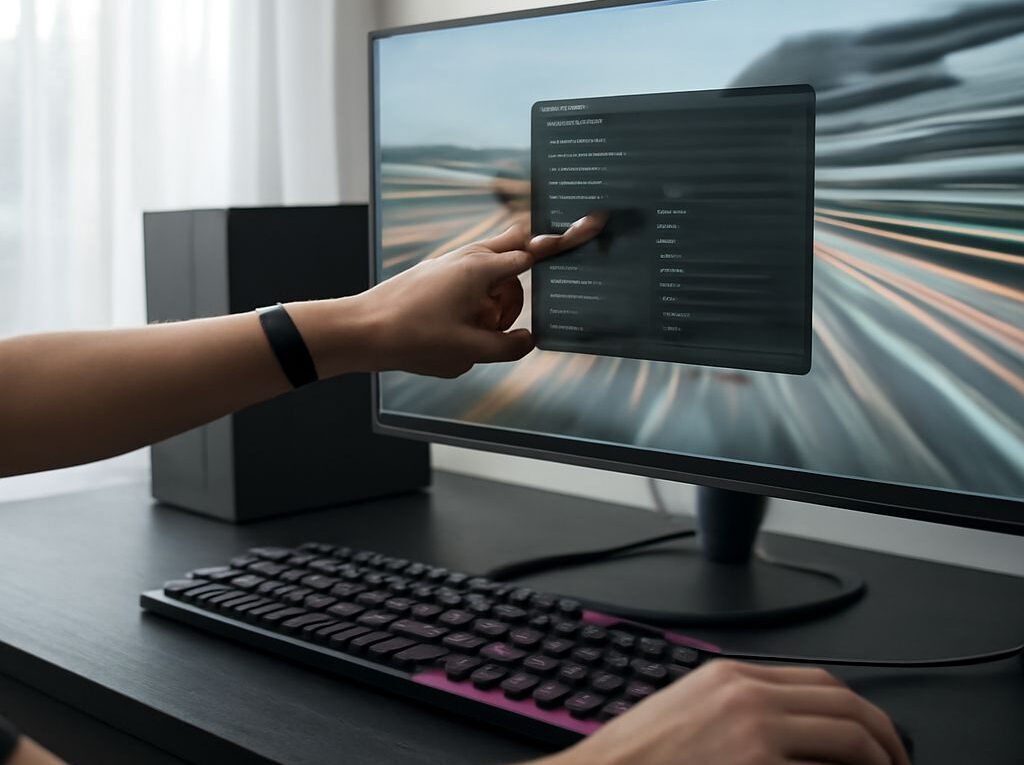
How to Perform a Refresh Rate Test on Your Monitor
The refresh rate of a monitor is a crucial aspect that determines the smoothness of the visuals you see on the screen. Whether you’re a gamer, designer, or general user, understanding how to perform a refresh rate test and check your monitor’s refresh rate can significantly enhance your viewing experience.
Understanding Monitor Refresh Rate
Refresh rate, measured in hertz (Hz), signifies how many times per second your monitor updates with new information. A higher refresh rate results in smoother motion, reducing the likelihood of screen tearing and providing a more seamless visual experience. For instance, a 60Hz monitor refreshes the display 60 times per second, while a 144Hz monitor does so 144 times, delivering a noticeably smoother experience.
Why Testing Refresh Rate is Important
Testing your monitor’s refresh rate is essential for several reasons. Firstly, it ensures that your display is operating at its optimal capacity, delivering the best possible visuals. Secondly, certain activities, such as gaming or video editing, demand higher refresh rates to avoid lag and motion blur. Regularly performing a monitor refresh rate test helps in diagnosing performance issues and ensuring your monitor settings are correctly configured.
How to Check Your Monitor’s Refresh Rate
To check monitor refresh rate, start by accessing your system’s display settings. On Windows, right-click on the desktop and select “Display settings.” Scroll down and click on “Advanced display settings.” Here, you will find the refresh rate of your current monitor under “Refresh rate.” On macOS, go to “System Preferences” > “Displays” and select the “Display” tab to see the refresh rate options.
If you notice that the refresh rate is lower than expected, make sure your graphics drivers are up to date and that your monitor is properly connected to your device using the correct cables.
Tools for a Monitor Refresh Rate Test
Several tools can help perform a comprehensive monitor refresh rate test. Online tools such as TestUFO offer a straightforward way to test your screen’s refresh rate. Simply visit the website, and it will automatically detect and display your monitor’s refresh rate.
For more detailed insights, software applications like DisplayCAL and Custom Resolution Utility allow users to tweak and test various display settings, including refresh rates. These tools are particularly useful for advanced users looking to optimize their display performance further.
By using these tools and methods, you can ensure that your monitor operates at its highest potential, enhancing your overall computing experience.