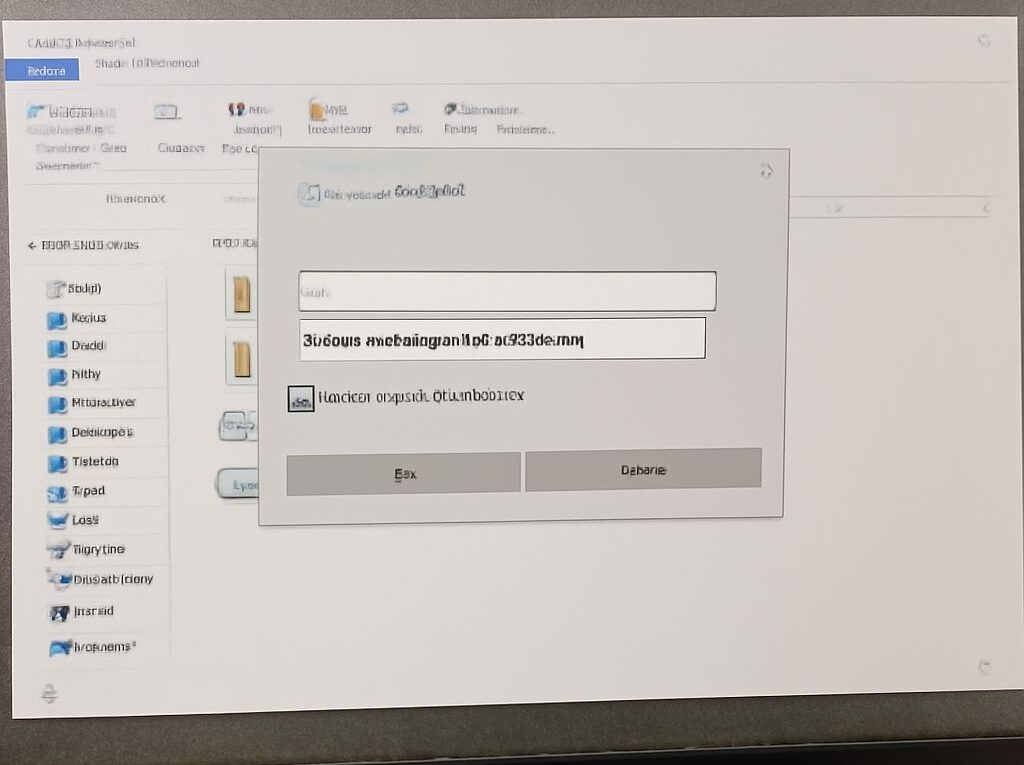
What Are Network Credentials for a Windows Shared Folder?
A Wi-Fi password connects a device to a wireless network; a shared-folder prompt asks the user to authenticate to the computer or service hosting the files. What credentials are needed for network access depends on that target and the organization’s account setup. Identifying the server and account first makes the prompt easier to resolve.
Identify the resource and account
When Windows opens a path such as \\fileserver\team, fileserver identifies the computer hosting the share and team identifies the shared resource. What are network credentials in this situation? They are the account information presented to the target for authentication, often a username and password for an account that the server recognizes. The example path is illustrative; use the actual path supplied by the organization.
On a domain-managed network, the expected account may be the employee’s work account. The administrator may specify a form such as DOMAIN\username or [email protected]. If a separate computer hosts the share and uses a local account, the format may instead be COMPUTERNAME\username. Which network credentials apply is determined by the target’s configuration, so use the account and format provided for that share. A Windows sign-in PIN is not automatically the password requested by a remote server.
Before entering anything, confirm that the share path is expected and that the prompt appeared as part of an authorized task. Connect the organization’s VPN if the resource requires it. Enter credentials only into the approved system prompt, and never send a password in a support ticket or chat message. If the correct account or destination is unclear, ask the administrator rather than guessing repeatedly and risking an account lockout.
Authentication and folder permissions
A valid sign-in establishes which account is requesting access. The server then checks whether that account is allowed to use the share and the underlying files. Successful authentication can therefore be followed by an access-denied message if share or file-system permissions do not allow the requested action. For example, a user may be able to open a folder but lack permission to modify a document.
What are network credentials useful for when access is denied? They identify the account presented for the connection, giving an administrator a starting point for checking the share and file permissions. They do not grant those permissions by themselves. To clarify which network sign-in credentials were used, the employee should report the account name and whether opening, reading, or saving failed so the administrator can examine the relevant access rights.
Check existing connections
When considering what credentials a network share requires, remember that Windows can reuse an existing connection or saved credential for a server. If the user tries a different account against the same server, Windows may report that multiple connections using different usernames are not allowed. Microsoft documents this behavior. Note any open files and existing mapped drives before disconnecting a connection, because doing so can interrupt work.
To find which credentials Windows has saved for network resources, open Credential Manager and inspect Windows Credentials for the expected server. Follow company instructions or contact IT before changing an entry; a saved item may support other work. Disconnect only the relevant mapping when instructed, then retry the approved path and account. Deleting a saved entry does not necessarily end an active session, so IT may need to check both.
If the prompt keeps returning
Repeated prompts can indicate an incorrect account format, outdated saved credentials, or an authentication problem. Note the server and share path, the account name and domain used, the exact error, time, VPN status, and whether other shares on that server are open. Ask the administrator to verify which account the resource accepts and whether an existing session is conflicting; provide no password.