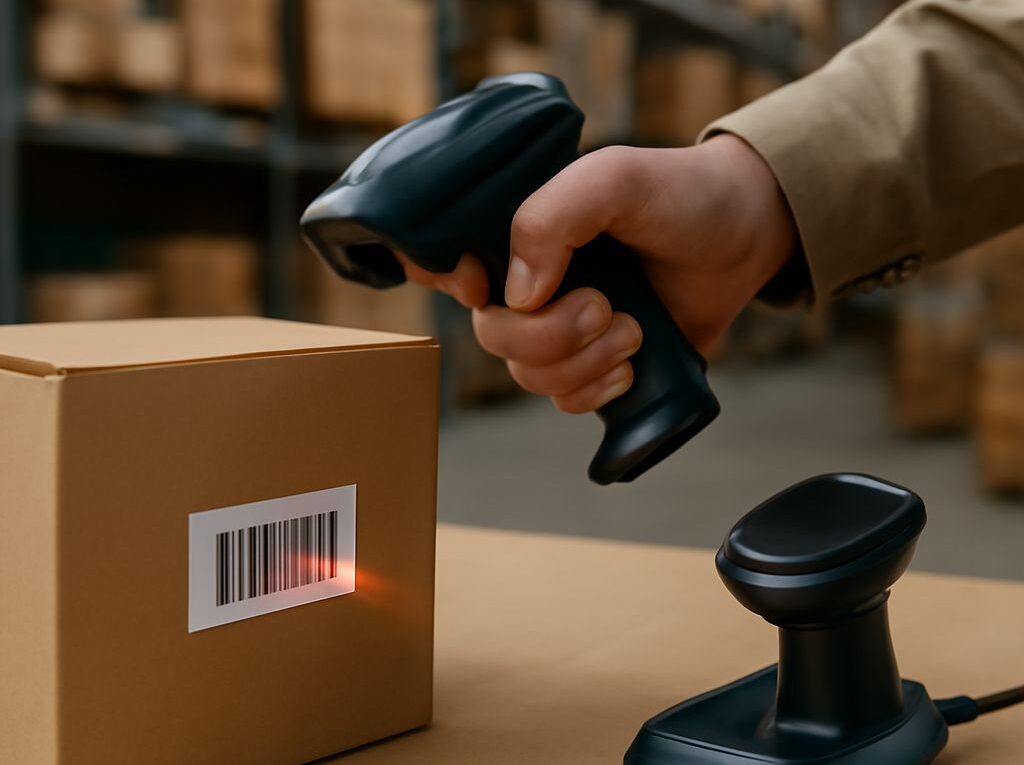
Barcode Scanner Bluetooth Integration for Field Operations
A Bluetooth barcode scanner in keyboard mode can put a decoded value into the active text field with little application integration. A serial or vendor-supported interface instead gives an application a dedicated data channel, but requires compatible software and device support. The choice affects how scans are directed, validated and recovered when the connection fails.
Start with the labels and workflow
List the codes workers actually encounter before choosing equipment. Common one-dimensional symbologies include Code 128 and UPC; QR Code and Data Matrix are two-dimensional. A Bluetooth scanning device must support and have enabled the required symbologies, and its optical engine must be suited to the labels’ size, print quality and working distance. Test damaged labels and the lighting conditions found at the site as well as clean samples.
A warehouse receiving screen may expect a product code followed by a quantity, while a field service application may use a scan to open an equipment record. The same decoded characters can therefore require different validation and routing. Define what a valid scan looks like, where it goes and what the operator sees when the application accepts or rejects it.
Pair the scanner and select its interface
Set the barcode scanner Bluetooth profile to one supported by both the scanner and host. Depending on the model, configuration may involve scanning a setup barcode, using the host’s Bluetooth settings or a vendor pairing utility. Identify the intended scanner by its device name or serial number, complete pairing and confirm that the host reports an active connection. The manufacturer’s instructions govern the specific sequence.
In HID keyboard mode, the scanner sends decoded characters as keystrokes. The cursor must be in the intended field; otherwise the input can go to another control or application. Keyboard layout, prefixes and suffixes also matter: an automatic Enter, for example, may submit a form immediately. Zebra’s scanning instructions illustrate the need for an active field in this style of workflow.
A serial profile or supported vendor interface delivers data through a channel the application or middleware must open and interpret. It can provide more control over handling scan events and, depending on the implementation, device status. Bluetooth support alone does not imply that every host, operating system or application supports a particular serial profile. Confirm the exact combination before deployment.
Validate a complete transaction
With a wireless barcode scanner paired to the target device, scan representative labels into the actual application. Compare the received value character by character, including leading zeros, separators and any configured prefix or suffix. Verify that each code reaches the intended field and that invalid or unexpected values receive a clear error. Check whether a scan triggers submission or merely fills a field.
A scanner beep normally signals a successful decode, not necessarily a completed business transaction. The application should give its own confirmation after it has accepted the value and saved or queued the relevant record. Test rapid consecutive scans and a switch between fields to expose focus or timing errors.
Recognize and recover from connection loss
When the barcode scanner Bluetooth connection drops, the host may show a disconnected status even though the scanner can still decode a label. Some Bluetooth barcode readers can buffer scans and transmit them after reconnection; others do not, and buffer limits and replay behavior vary. Test the configured model offline and decide whether staff should stop scanning or use an approved queue.
A Bluetooth-enabled barcode reader that beeps but produces no application confirmation is a signal to check the connection, active field and pending queue before scanning again. Reconnect using the documented procedure, reconcile any replayed scans against completed transactions, and resend only those confirmed missing. This prevents a recovery attempt from creating duplicate receipts or updates.