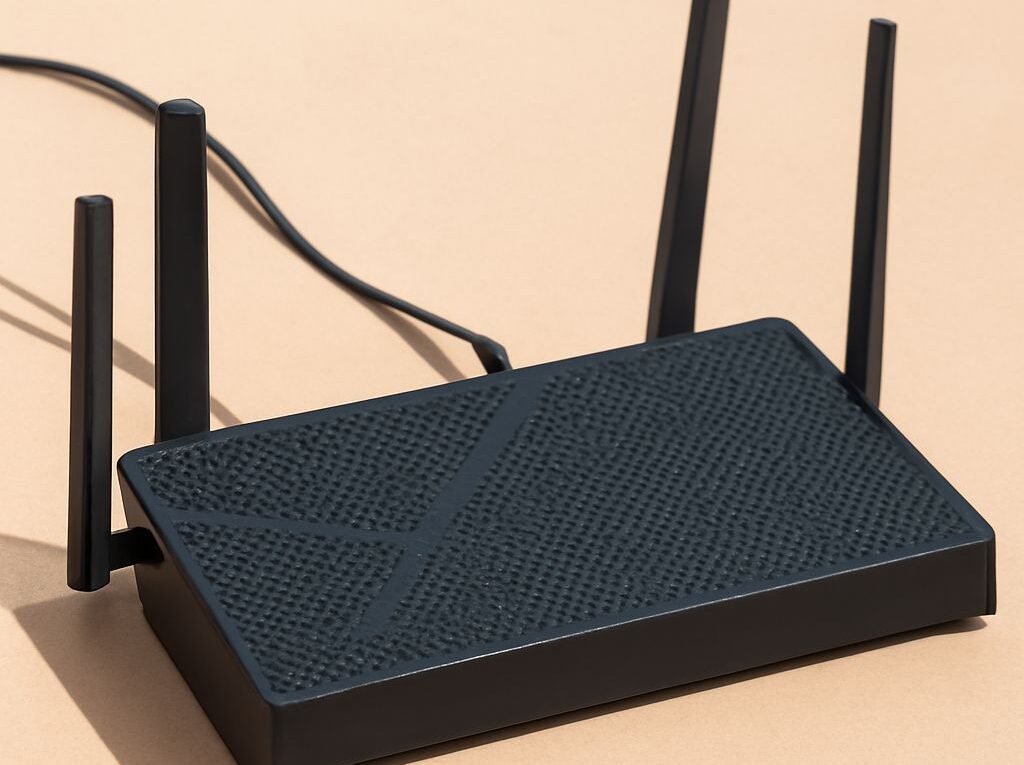
Wireless AC Access Point: When AP Mode or Bridge Mode Is the Right Fit
A wireless ac access point is still a practical upgrade when the network needs stronger 5 GHz coverage, more simultaneous clients, or a cleaner wired uplink than a consumer router can provide. A wireless to ethernet bridge is the better fit when Wi‑Fi must feed a single device, a printer, a TV, or a remote switch that cannot be cabled directly.
The decision is usually simple: choose AP mode to serve Wi‑Fi clients; choose bridge mode to convert Wi‑Fi into Ethernet. The harder part is selecting hardware that matches the radio design, the ports, the management tools, and the real throughput expected in the room, hall, or outbuilding.
What a wireless AC access point can and can’t do
802.11ac is a 5 GHz Wi‑Fi standard built for higher capacity and lower interference than older 2.4 GHz-only gear. In practice, most APs are dual-band, so they still serve 2.4 GHz for legacy devices and longer reach while using 5 GHz for faster, cleaner traffic. That dual-band split matters more than headline speed because real deployments usually need both coverage and client density.
The specification is only useful when the radio design is matched to the site. A 2×2 access point can be enough for a small office or home, while 3×3 and 4×4 models help when many clients are active at once or when the AP is expected to deliver better upstream and downstream balance. Wider channels also help, but they are not free capacity.
- Band mix: 2.4 GHz reaches farther and handles legacy devices; 5 GHz supports more airtime and usually less congestion.
- Spatial streams: More streams can increase capacity, but only if client devices can use them.
- Channel width: 20/40 MHz is conservative, 80 MHz is common for 802.11ac, and 160 MHz is only useful when spectrum is very clean.
- Ethernet uplink: A 1 GbE port can bottleneck a strong radio; 2.5 GbE is more comfortable on higher-end hardware.
- PoE support: Power over Ethernet makes ceiling or wall mounting easier and avoids a nearby outlet requirement.
That last point is important in real installations. A good radio can still underperform if the Ethernet uplink is slow, the AP is forced into a poor mounting position, or the power budget is too tight for full radio output. PoE also simplifies placement because the AP can be mounted where the signal is best, not where the nearest socket happens to be.
Security and roaming matter as much as raw speed. WPA2 is still common, WPA3 is preferable where clients support it, and 802.1X with RADIUS is important in managed environments. For multi-AP deployments, look for band steering, VLAN support, guest network isolation, and roaming assistance such as 802.11k/v/r. Those features do not increase headline throughput, but they reduce sticky clients, dropped calls, and manual troubleshooting.
Management should be simple enough to use after deployment. A usable controller, cloud dashboard, or standalone web interface should expose channel selection, transmit power, SSID mapping, firmware updates, configuration backup, and client statistics. Good management is what makes an AP model maintainable after the first day of installation.
AP mode vs. bridge mode: which connection fits your network?
AP mode is the right choice when the device needs to broadcast Wi‑Fi to phones, laptops, and tablets. In that role, the access point connects by Ethernet to the wired LAN and creates a wireless cell for normal client access. This is the right answer when the goal is coverage, capacity, or roaming across several rooms.
Bridge mode is different. A bridge is a Wi‑Fi client on one side and an Ethernet source on the other. In a client bridge topology, the radio joins an existing access point, then passes network access to a wired device or a small wired segment. That makes a bridge useful for a desktop PC, printer, media player, IP camera, or a small switch in a location where running cable is impractical.
- Use AP mode to extend coverage for many wireless devices.
- Use bridge mode to give Ethernet-only devices a network path over Wi‑Fi.
- Use a bridge with a switch only if the device supports multiple downstream MAC addresses.
- Use AP mode with roaming features when users move between access points and need stable handoff.
Addressing determines whether the bridge behaves like part of the main LAN or like an isolated segment. In a transparent bridge, the wired device typically receives an address from the main DHCP server and appears on the same subnet as the rest of the network. That is the best fit when local discovery, shared printers, or cast devices need to work without extra rules.
Some devices offer bridge mode with NAT instead of true transparency. That can be useful when the remote side should be isolated, but it can also break discovery protocols and complicate troubleshooting. If the goal is to make a wired device behave as if it were plugged directly into the main network, transparent bridging is usually the cleaner option.
Throughput is also different from AP mode. A wireless bridge spends airtime receiving from the upstream AP and then forwarding that traffic to Ethernet, so the usable rate is lower than the advertised link rate. Placement matters more here than in a normal client setup. A bridge works best when it has a clear 5 GHz path to the AP, minimal wall loss, and enough signal margin that the link does not constantly change rates.
In practice, bridge mode beats AP mode when the problem is not Wi‑Fi coverage but Ethernet access. AP mode beats bridge mode when the problem is client coverage, roaming, or density. If the need is both, the better design is usually a proper AP for users and a separate bridge only for the wired device or remote segment.
What matters in wireless access point reviews
Useful wireless access point reviews focus on measured behavior instead of peak numbers printed on the box. The best comparison is not a single top speed; it is how the AP performs on each band, with real clients, at realistic distances, and under load.
- Radio design: Confirm whether the model is 2×2, 3×3, or 4×4 and whether both bands are active at the same time.
- Channel width support: Check whether 80 MHz is stable and whether 160 MHz is available only as an optional setting.
- Uplink port: A 1 GbE port is fine for many installs, but it can limit a fast 802.11ac radio; higher-end models benefit from 2.5 GbE.
- PoE requirements: Verify whether the AP needs standard PoE or PoE+ and whether the switch can supply it.
- Security options: Look for WPA2/WPA3, 802.1X, guest isolation, and VLAN support.
- Roaming features: 802.11k/v/r support matters when multiple APs cover the same area.
- Management: Good reviews should mention firmware tools, controller setup, logging, and how easy it is to change SSIDs, channels, and transmit power.
Measured behavior is the part that most often changes a buying decision. A strong review should report throughput on both 2.4 GHz and 5 GHz, not just the fastest band. It should also show performance at short range and through at least one wall, plus latency or packet-loss behavior under load. An AP that looks fast in a lab can still be a poor fit if it drops performance sharply once clients move a few rooms away.
For deployment planning, pay attention to client count and airtime behavior. A small office with a dozen phones and laptops needs different hardware than a shop floor with scanners, cameras, and voice traffic. A good review will describe whether the AP holds steady when multiple devices transfer data, or whether it collapses into retransmissions and high latency as soon as the radio gets busy.
Management quality is also part of the review, even when it is easy to overlook. A controller that shows client signal, channel utilization, DFS events, and configuration history makes troubleshooting much faster. Firmware support matters too, especially if the AP is expected to stay in service for years rather than months.
How to set up and test a wireless-to-Ethernet bridge
- Choose the right mode. Set the device to client bridge, station bridge, or media bridge, not AP mode. If the model offers both transparent bridging and NAT, choose transparent bridging for a device that should live on the main LAN.
- Place the bridge carefully. Put it where the signal to the upstream AP is strong and stable, ideally with a clear 5 GHz path. Avoid metal cabinets, TV backs, thick masonry, and microwave-heavy areas.
- Connect the wired side. Plug the target device or remote switch into the bridge’s Ethernet port. If the bridge is meant to feed more than one wired device, confirm that it supports multiple MAC addresses through the port.
- Set addressing. For a transparent bridge, let the main DHCP server hand out the address. For static setups, assign an IP on the same subnet and disable any second DHCP server on the bridge.
- Secure the link. Use WPA2 or WPA3 as supported by both ends, and match the channel width and band to the upstream AP’s stable settings before chasing speed.
- Measure the wireless side first. Record signal level, link rate, and latency from the bridge to the AP. A simple test is 50 pings to the gateway plus a note of any rate swings or retransmissions.
- Measure the wired side next. From the device behind the bridge, run a repeatable throughput test to a wired LAN host, such as an iperf3 session for one minute in each direction. Follow it with a file copy or application test if the device uses real traffic, such as printing, streaming, or camera upload.
- Repeat under the same conditions. Run the same test at least twice, then change only one variable at a time, such as AP channel width, bridge location, or antenna orientation. Stable results matter more than a single peak number.
The bridge is ready when the wired device receives the correct LAN address, pings stay consistent, and the throughput is repeatable without large spikes in loss or latency. If the wireless side looks strong but the wired test is unstable, the issue is usually placement, channel congestion, or a hidden NAT/transparency mismatch rather than the Ethernet device itself.