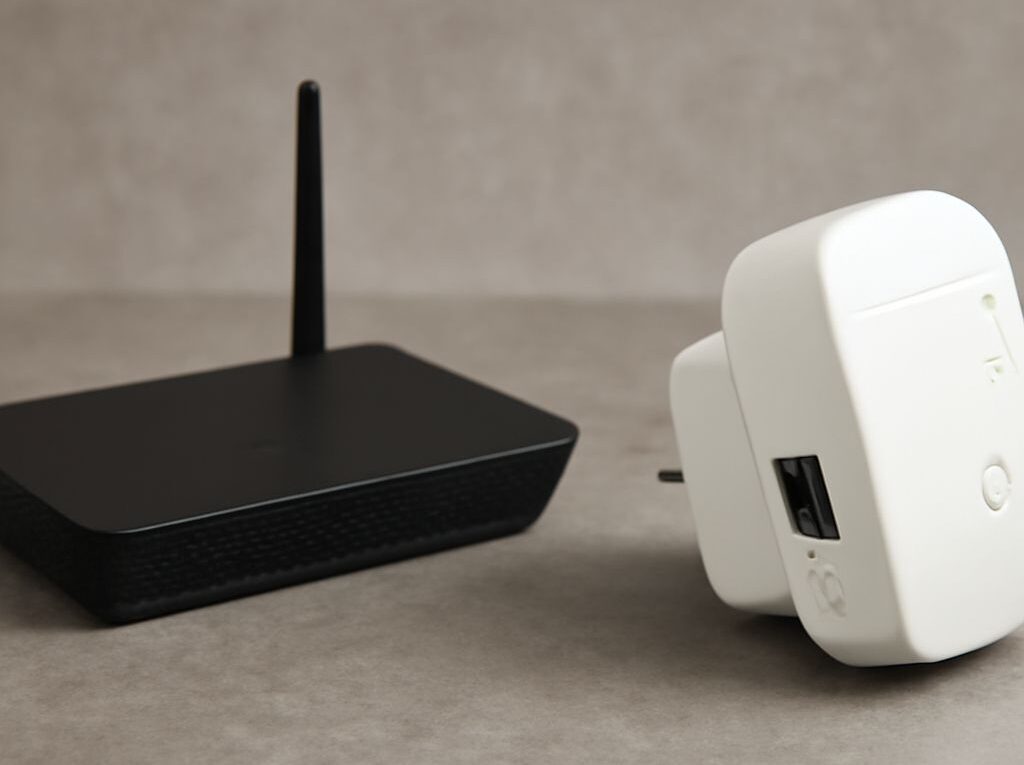
Wi-Fi 802.11 b/g/n: What It Means and How to Choose a Range Extender or Access Point
A router labeled Wi‑Fi 802.11 b/g/n is signaling a 2.4 GHz radio that can work with older 802.11b and 802.11g devices while still supporting 802.11n. That label is about compatibility, not a guarantee of strong speed. In mixed mode, the slowest legacy client can reduce the performance of everyone on that radio.
For coverage, the better choice is usually a wired access point if Ethernet or MoCA is available. A range extender is the fallback when wiring is impractical. The main difference is backhaul: an extender relays traffic over Wi‑Fi, while an access point uses a wired link and leaves the radio free for clients.
What Wi-Fi 802.11 b/g/n means for speed and compatibility
2.4 GHz vs 5 GHz, channels, and channel width
802.11b and 802.11g are 2.4 GHz-only standards. 802.11n can run on 2.4 GHz or 5 GHz, which is why a router may show different radio modes on each band. A device set to wifi bgn usually refers to the 2.4 GHz radio only; it does not mean the whole network is using one speed tier.
The 2.4 GHz band travels farther through walls, but it is crowded and has only a few clean channels. In many regions, channels 1, 6, and 11 are the practical non-overlapping choices. That matters because overlapping channels raise interference and force devices to wait longer before sending.
Channel width also affects results. On 2.4 GHz, 20 MHz is usually the safest setting in busy neighborhoods. 40 MHz can look faster on paper, but it often causes more overlap and less consistent throughput. On 5 GHz, 802.11n can use wider channels more comfortably, and the band is usually less congested, but range is shorter.
Legacy clients, data rates, and mixed-mode slowdown
802.11b tops out at 11 Mbps raw signaling, 802.11g reaches 54 Mbps, and 802.11n improves efficiency with MIMO, frame aggregation, and better modulation. Real-world throughput is always lower than the advertised link rate, but the gap becomes much worse when old clients join the same radio.
Wi‑Fi is a shared medium. A slow client occupies airtime longer than a fast one, so one 802.11b device, or even a weak 802.11g device with poor signal, can reduce the effective capacity of the entire cell. That is the main reason mixed-mode networks feel slower than expected.
Mixed mode also adds compatibility overhead. The access point may use legacy protection frames and other extra signaling so older devices can understand the channel. That overhead protects compatibility, but it costs airtime that could otherwise carry data for newer devices.
If all active clients support 802.11n or better, disabling 802.11b support can improve efficiency. If older hardware must stay connected, keeping the radio in BGN mode is reasonable, but the network should be treated as a compatibility network rather than a performance network.
What Wi-Fi BGN compatibility mode actually does
Security settings that keep older devices connected
Wi‑Fi BGN compatibility mode is mainly a radio setting, but security determines which devices can actually join. Older devices may only support WPA or WPA2, and a few very old devices still depend on WEP or TKIP. Those legacy options can keep a printer, scanner, or embedded device online, but they are weaker and should be avoided whenever possible.
For 802.11n, WPA2 with AES is the practical baseline. WPA3-only settings can exclude older clients entirely. If a network has one legacy device that cannot be updated, a separate SSID on the 2.4 GHz band is often a better compromise than weakening the main network for every client.
Compatibility settings can also affect speed. Some older security modes disable the highest 802.11n rates or force conservative behavior. That means a network can be technically connected in BGN mode while still failing to deliver the throughput users expect.
Mixed-mode behavior and performance tradeoffs
BGN mode does not add speed by itself. It broadens compatibility, and that often means more overhead. In a busy home or office, the radio may spend more time handling protection frames, managing slower clients, and avoiding channel conflicts on 2.4 GHz.
When every device is modern, a cleaner mode is usually better. If the router allows it, an N-only or newer mode can reduce compatibility overhead. If the network must serve older clients, mixed mode is acceptable, but the performance tradeoff should be expected rather than treated as a fault.
A practical rule is simple:
- Keep BGN when older devices must stay online and their traffic is light.
- Prefer N-only or newer when all clients support it.
- Separate legacy devices onto their own SSID if they slow down the main network.
Range extender vs access point: which one gives better coverage?
Wireless backhaul and airtime loss
A range extender receives a Wi‑Fi signal and retransmits it. That sounds simple, but it costs airtime. On a single-radio extender, the same channel is used to talk to the router and to talk to clients, so each packet must be heard and sent again. In practice, that can cut usable throughput sharply and increase latency.
Dual-band extenders do better because one band can handle the backhaul while the other serves clients, but the wireless link still consumes spectrum and still depends on a strong upstream signal. If the extender is placed too far from the router, it repeats a weak connection and the far room remains slow.
An extender is most useful when no cable can be run and the goal is modest coverage for light traffic, such as email, browsing, or a single smart device that keeps dropping offline.
Wired backhaul, roaming, and latency
An access point uses a wired backhaul, usually Ethernet or MoCA, to connect back to the main router or switch. Because the wireless radio is not being used as a relay, nearly all airtime goes to client traffic. That usually means better throughput, lower latency, and more stable performance under load.
Access points also tend to work better for roaming. When the router and AP share the same SSID, password, and security settings, compatible clients can move between them with less disruption. Roaming still depends on the client deciding when to switch, but the network is easier to live with than a chain of repeated wireless hops.
- Choose a range extender when wiring is not available, the area is small, and some speed loss is acceptable.
- Choose an access point when Ethernet or MoCA is available, multiple users share the link, or latency matters for calls, streaming, or gaming.
- Use an extender as a stopgap if the only problem is a single dead zone and the main router already performs well nearby.
How to place it for the devices you already have
Placement rules that improve coverage
Placement matters more than marketing labels. A range extender should not sit inside the dead zone; it should sit where it still receives a strong, stable signal from the router. In many homes, that is roughly halfway to the weak area, but the real rule is signal quality, not distance. If the extender sees only a poor upstream link, it will simply repeat a poor upstream link.
Keep both extenders and access points away from metal cabinets, refrigerators, thick masonry, and large TVs. Elevation helps, so placing the device on a shelf is usually better than hiding it on the floor. Microwaves, cordless phones, and dense electronics can also make 2.4 GHz behavior less reliable.
For a wired access point, place it where the devices are used, not where the router happens to sit. Central hallways, open ceilings, and upper shelves often work better than corners or enclosed rooms. If the network is mostly 2.4 GHz BGN clients, avoid stacking multiple radios on the same channel too close together.
Quick throughput tests to confirm the gain
Coverage should be verified with the client devices that matter most. A phone, laptop, or tablet in the far room is a better test than a close-range speed check beside the router. Test the same device in the same spot before and after the change so the result is comparable.
A simple test sequence works well:
- Record baseline download speed, upload speed, and latency near the weak area.
- Install the extender or access point and repeat the same test from the same spot.
- Check a second location between the router and the weak area to see whether performance stayed consistent.
The useful gain is not just a higher peak number. A good placement also reduces drops, lowers ping spikes, and keeps speeds steadier during normal use. If the new device barely improves throughput, move the extender closer to the router, choose a cleaner 2.4 GHz channel, or switch to a wired access point if the cable path exists.
When the network must keep older b/g clients alive, BGN mode is a compatibility choice that comes with slower mixed-mode behavior. When the goal is reliable coverage for current devices, a wired access point is usually the stronger option, and a range extender is best treated as the compromise when wiring is not practical.